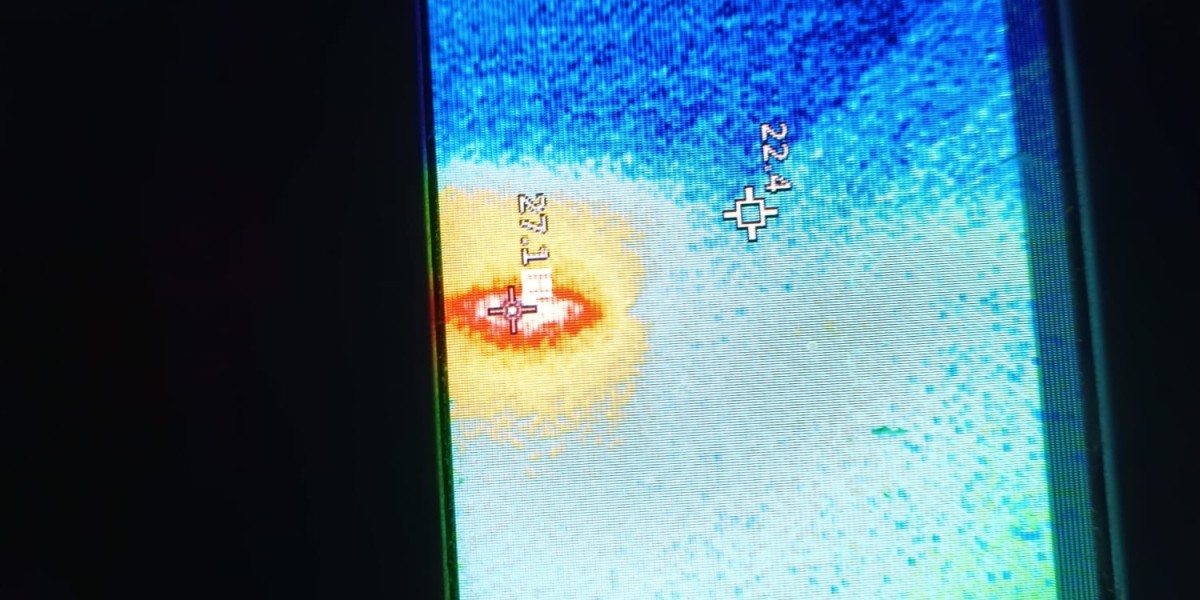

Face ID makes unlocking an iPhone, approving payments, and signing into supported apps quick and convenient. However, it can sometimes stop recognizing your face or fail completely. If your iPhone says “Face ID Not Available,” repeatedly asks for your passcode, or refuses to complete Face ID setup, there may be a simple setting, obstruction, software issue, or hardware problem behind it.
For customers searching for cell phone repair brooklyn ny, knowing the common causes of Face ID problems can help determine whether the issue can be fixed at home or needs professional attention. Avenue D Cellular can help troubleshoot iPhone hardware and software problems, while people looking for iphone repair brooklyn may benefit from professional diagnosis when Face ID continues to fail after basic troubleshooting.
Table of Contents
- Why Is My iPhone Face ID Not Working?
- Common Causes of Face ID Problems
- How to Fix Face ID When It Stops Working
- How to Reset and Set Up Face ID Again
- When Face ID May Need Professional Repair
- How to Prevent Face ID Problems
- Frequently Asked Questions
- Final Thoughts
- CTA
Why Is My iPhone Face ID Not Working?
Face ID relies on the iPhone's TrueDepth camera system to recognize your face. If something blocks the camera, your face is partially covered, the settings are incorrect, or the TrueDepth system has a problem, Face ID may not work properly.
Apple recommends checking your iPhone's software, Face ID settings, TrueDepth camera area, face positioning, and other basic factors before resetting Face ID or seeking service.
The problem can range from Face ID failing occasionally to being completely unavailable. Identifying the exact behavior can provide useful clues about the cause.
Common Causes of Face ID Problems
1. The TrueDepth Camera Is Blocked
One of the easiest things to check is the area around the front camera and sensors.
A fingerprint, dust, smudge, case, or screen protector can interfere with the TrueDepth camera system. Apple recommends removing anything that may be covering the TrueDepth camera and cleaning the affected area.
Use a clean, soft, lint-free cloth to gently wipe the front camera area.
2. Your Face Is Partially Covered
Face ID needs to see important facial features. If your eyes, nose, or mouth are covered, recognition may fail.
Masks, certain sunglasses, clothing, or other objects can interfere with recognition. Apple notes that some sunglasses can also block the infrared light used by the TrueDepth system.
Try Face ID without sunglasses, masks, or other coverings to see whether recognition improves.
3. You're Holding the iPhone Too Far Away
Distance and positioning can affect Face ID.
Apple recommends keeping the iPhone approximately 25–50 cm (10–20 inches) from your face and facing the TrueDepth camera directly.
Hold the phone naturally at about arm's length or closer and make sure your face is within the on-screen frame.
4. Face ID Settings May Be Turned Off
Face ID can be enabled for different functions, including unlocking the iPhone, payments, password autofill, and supported apps.
Go to:
Settings > Face ID & Passcode
Enter your passcode and check whether the feature you are trying to use is enabled.
Apple specifically recommends checking Face ID settings when Face ID isn't working as expected.
5. A Temporary Software Problem
Sometimes a temporary iOS issue can affect Face ID.
If Face ID suddenly stops working but the iPhone otherwise behaves normally, restarting the device may resolve the problem.
Apple recommends restarting the iPhone and then entering the passcode before trying Face ID again.
6. Your iPhone Needs a Software Update
An outdated version of iOS can sometimes contribute to software-related problems.
Go to:
Settings > General > Software Update
If an update is available, review the update information and install it when appropriate.
Apple recommends keeping the device updated when troubleshooting Face ID issues.
7. Face ID Needs to Be Set Up Again
If Face ID has become unreliable, resetting the existing Face ID configuration and setting it up again may help.
Go to:
Settings > Face ID & Passcode > Reset Face ID
Then select Set Up Face ID and follow the instructions displayed on the screen. Apple recommends resetting and setting up Face ID again when the basic troubleshooting steps do not solve the issue.
8. The iPhone Has Been Dropped
Physical damage can affect the components involved in Face ID.
If Face ID stopped working immediately after your iPhone was dropped, bumped, or subjected to another impact, hardware damage may be involved.
You may also notice other symptoms, such as:
- Front camera problems
- Screen damage
- Proximity sensor problems
- Face ID setup failure
- Unusual behavior around the top of the display
A damaged TrueDepth system generally requires professional inspection rather than repeated software troubleshooting.
9. Previous Repair May Have Affected Face ID
Repairs involving the front camera or related components can affect Face ID.
Apple explains that on supported iPhone models, Parts and Service History can show information about the TrueDepth/front-camera system. Apple also notes that issues can occur when a front camera component is replaced with a non-genuine component, when calibration is incomplete, or when the component is not functioning correctly.
If Face ID stopped working after a screen or front-camera repair, the repair history is worth considering when diagnosing the problem.
10. Internal Hardware Damage
If the iPhone cannot complete Face ID setup even after cleaning the camera area, restarting the device, updating iOS, and resetting Face ID, the problem may be hardware-related.
Apple states that service may be required if Face ID repeatedly fails during setup or if the camera isn't working and Face ID cannot be configured.
How to Fix Face ID When It Stops Working
Step 1: Clean the Front Camera Area
Check the TrueDepth camera area for fingerprints, dirt, dust, or other obstructions.
Gently clean the area with a suitable soft cloth.
Step 2: Remove Your Case Temporarily
Take off your case and check whether it is covering any part of the front camera or sensor area.
Also inspect your screen protector. A poorly fitted protector can interfere with the camera area.
Step 3: Make Sure Your Face Is Clearly Visible
Remove anything that could obstruct your face and look directly toward the iPhone.
Try the test in normal indoor lighting and keep the phone within the recommended distance.
Step 4: Check Face ID Settings
Open:
Settings > Face ID & Passcode
Confirm that Face ID is configured and that the feature you want to use is enabled.
Step 5: Restart the iPhone
Turn the iPhone off and back on. After restarting, enter your passcode once and then test Face ID again.
Step 6: Update iOS
Check Settings > General > Software Update and install an available update if appropriate.
Step 7: Reset Face ID
If the problem continues, reset Face ID and complete the setup process again.
During setup, follow the on-screen instructions and move your head as requested.
How to Reset and Set Up Face ID Again
Resetting Face ID removes the existing facial-recognition configuration. To do this:
- Open Settings.
- Tap Face ID & Passcode.
- Enter your passcode.
- Tap Reset Face ID.
- Tap Set Up Face ID.
- Position your face inside the frame.
- Follow the on-screen instructions to complete the scan.
Apple recommends this process when restarting and checking the camera and settings do not resolve the problem.
If setup repeatedly fails or the phone cannot detect your face during the setup process, that is a stronger reason to have the device professionally inspected.
When Does Face ID Need Professional Repair?
Not every Face ID problem requires a repair. However, professional diagnosis becomes more important when troubleshooting does not solve the issue.
Consider having the iPhone inspected if:
- Face ID stopped working after a drop.
- The iPhone has been exposed to liquid.
- The front camera is also malfunctioning.
- Face ID setup cannot be completed.
- You repeatedly receive a Face ID unavailable message.
- Face ID stopped working after a screen or camera repair.
- The TrueDepth camera appears damaged.
- Face ID continues failing after restarting and resetting it.
The TrueDepth camera system contains specialized components, so attempting an improper repair can create additional problems. Apple specifically recommends trained technicians for service involving the Face ID system.
How to Prevent Face ID Problems
Keep the Camera Area Clean
Regularly wipe fingerprints and smudges from the front camera area with an appropriate soft cloth.
Use a Properly Fitted Screen Protector
Choose a screen protector designed for your specific iPhone model and make sure it does not interfere with the TrueDepth camera area.
Protect Your iPhone From Drops
A protective case can help reduce damage caused by accidental falls. If the phone experiences a significant impact, watch for new Face ID or camera problems.
Avoid Unnecessary Repairs
Because Face ID relies on specialized hardware, repairs around the front camera and display should be performed carefully by qualified technicians.
Keep iOS Updated
Installing appropriate iOS updates can help keep the device operating with current software and security improvements.
Frequently Asked Questions
Why is Face ID suddenly not working on my iPhone?
A blocked TrueDepth camera, facial obstruction, software issue, incorrect settings, or hardware problem can cause Face ID to stop working. Start by cleaning the camera area, checking settings, restarting the phone, and checking for an iOS update.
Why does Face ID say “Not Available”?
The message can indicate that Face ID cannot currently operate correctly. If restarting, updating iOS, checking the camera area, and resetting Face ID do not solve the issue, professional service may be necessary.
Can a screen protector stop Face ID from working?
Yes. If a screen protector or its adhesive obstructs the TrueDepth camera area, it can interfere with Face ID. Removing the protector temporarily can help determine whether it is contributing to the problem.
Will resetting Face ID delete my iPhone data?
Resetting Face ID removes the stored Face ID configuration; it does not mean you are erasing the iPhone itself. You can then set Face ID up again through Settings.
Why is Face ID not working after a screen repair?
If Face ID stops working after a repair, the issue may involve the components or calibration associated with the TrueDepth system. Apple notes that certain front-camera replacement or calibration issues can prevent Face ID from functioning.
Can Face ID be repaired after a drop?
The answer depends on what was damaged. A technician can inspect the device and determine whether the problem involves the TrueDepth camera system or another component.
Why does my iPhone keep asking for my passcode instead of using Face ID?
There are circumstances in which an iPhone requires the passcode even when Face ID is functioning normally. Therefore, an occasional passcode request does not necessarily mean Face ID is broken.
Final Thoughts
When Face ID stops working, the problem may be something simple such as a dirty camera area, an obstructed sensor, incorrect settings, or a temporary software issue. Start by cleaning the TrueDepth camera area, removing a potentially interfering case or screen protector, checking Face ID settings, restarting the iPhone, and installing available iOS updates.
If those steps do not work, resetting Face ID and setting it up again may help. However, if Face ID cannot be configured, the front camera is malfunctioning, or the problem began after physical damage or a previous repair, professional inspection may be necessary.
For customers searching for cell phone repair brooklyn ny, Avenue D Cellular can help diagnose iPhone problems and determine whether further repair is needed. If you are looking for iphone repair brooklyn, getting persistent Face ID problems properly inspected can help identify whether the issue is related to software, the TrueDepth camera system, or other internal hardware.
CTA
Is Your iPhone Face ID Not Working?
If Face ID keeps failing, will not recognize your face, or cannot complete setup, start with the troubleshooting steps in this guide. If the problem remains, professional diagnosis can help identify the underlying issue.
Avenue D Cellular can assist with iPhone troubleshooting and repair needs. For cell phone repair brooklyn ny and iphone repair brooklyn, have your device checked when Face ID problems continue after basic troubleshooting.